How to Set Up Test Accounts and Rate Limits for Automated Testing
Set up a test identity per role, size the login budget a run needs, and raise the limit for that identity only, so automated tests stop locking themselves out.

A login rate limiter counts authentication starts per identity per window and never asks who is on the other end. One that could tell your test runner from a credential-stuffing bot would be no use against either. When an automated tester signs in twenty times a minute on one shared QA account, the limiter does what you built it to do and locks it.
Nothing is wrong with the app, and nothing is wrong with the agent. The account is wrong, and the limit was never sized for it. Setting up an automated tester starts at the login screen. Give it accounts built for the job, then give those accounts a login limit sized to the run, and the first run gets past the gate.
What you’ll learn
- Why a limiter tuned for humans locks out a tester holding the right password
- How to set up one test identity per role with a login no human has to finish
- How to size a login budget from three numbers already in your run plan, and where to raise the limit
- How to prove the setup with three runs and tell a rate limit from an authorization failure
Why a Shared QA Account Locks Out an Automated Tester
Because the limiter counts sign-in starts per identity inside a window, successful ones included, and parallel runs on one shared account look to it like a single identity hammering the door. An automated tester is the only workload you run that signs in correctly, many sessions at a time, as fast as the network allows.
Two controls sit in front of your login screen, and teams routinely conflate them.
- Account lockout: Counts failures. The OWASP Web Security Testing Guide describes it as a control against brute force and notes that accounts are typically locked after three to five unsuccessful attempts. An agent holding the correct password never trips it.
- Login rate limit: Counts starts inside a window, and the successful ones count too. An agent holding the correct password trips it constantly.
Picture the turnstile in your office lobby. It is sized for one badge, one person, a handful of times a day, and the tester walks up with that badge twenty times a minute. The turnstile is not broken and the badge is not stolen. The building has no entrance shaped like that visitor, and the fix is to build one, not to widen the turnstile for everyone who walks in.
We ran into it ourselves, running our testing agent across 45 of our own pull requests, on Pie’s web frontend and our mobile app. It reached the changed feature in roughly a third of them. Login rate limiting was one of five environment blockers, alongside missing test data, feature gating, IP allowlisting, and preview environments that ship a frontend without its backend.
The login one never varied. One credential, several runs in parallel, locked out. We hit it on our own portal first, which turned out to be the same wall customers had been describing to us. The five steps below are the order we cleared it in.
Step 1: Create One Test Identity per Role
Create at least one dedicated account for every role the pull request touches, in a non-production tenant, with only the permissions in scope and the feature flags the change sits behind. A member, a support agent, and an administrator are three identities. One login with everything switched on cannot prove that a member is kept out of the admin route.
- Non-production tenant: Put the accounts in a separate tenant or organization so a reset can never reach a real customer record.
- Scoped permissions: Grant what the run needs and nothing beyond it.
- Feature flags: Enable the same flags the changed code sits behind, otherwise the agent signs in successfully and sees last week’s screen.
- Challenges off: Disable CAPTCHA and bot challenges for the test identity or the trusted network path. No agent should be solving those.
- Secret-management path: Keep the credentials with the rest of your secrets instead of in a shared document. The ones Pie signs in with go into Credential Manager, where each test case selects the credential it runs as.
Do not hand the agent an employee account. Personal settings, stale sessions, and manual edits accumulate on a real person’s login, and a run that fails on somebody’s leftover preference is a run nobody can reproduce.
Then record the contract. Five columns is enough, and every field gets decided now instead of surfacing during triage.
| Identity | Tenant | Role | Routes in scope | Data profile |
|---|---|---|---|---|
[email protected] | acme-e2e | Administrator | /admin/* | admin-baseline |
[email protected] | acme-e2e | Support agent | /orders/* | order-ready-for-refund |
[email protected] | acme-e2e | Member | /account/* | member-baseline |
The step-by-step version is the docs guide to preparing identity, access, and test data. It also covers the seeding and reset procedure underneath that last column, which is where the next class of failure comes from.
Step 2: Make Login Deterministic for Every Identity
Each identity from Step 1 needs a way to arrive signed in as the right user on every run with nobody in the loop, and every role check and feature flag behind that login has to stay intact. Four paths get you there, and which one applies depends on what your real login does.
- Sandbox inbox: Point the test identity at a programmable mailbox the tester can read, so an emailed code or magic link is fetched during the run instead of waited on.
- Deterministic test OTP: Fix the second factor to a static test code for the test tenant, accepted only outside production and gated behind an environment check a production build cannot satisfy.
- Identity-provider test tenant: Keep single sign-on in the picture without pointing an automated tester at your corporate directory. Our guide to testing OAuth and SSO logins covers the redirect, the consent screen, and the test-tenant setup.
- Seeded session: Mint the session directly through an audited test endpoint when the login screen is not what the pull request changed, and log every call to that endpoint.
Name the limit before you pick one. A code delivered by SMS or generated by an authenticator app is not something an agent reads, so those flows run on a static test code outside production or with the second factor off on the test identity. Our guide to testing 2FA and OTP flows covers how to fence that bypass off from the production build.
Keep authorization real. Bypassing login must never bypass the role checks and feature flags the test exists to verify. A seeded session that arrives holding permissions the real user would not have will pass every assertion you wrote, including the one about the route that user should never reach. The suite goes green and proves nothing.
Step 3: Size the Login Budget From Your Run Plan
Multiply the concurrent tests in one run by the sign-ins each test makes and by the retries you allow. That product is the login budget, the number of authentication starts one run will spend on each identity from Step 1, and all three inputs are already in your run plan. Write it down before anyone opens a WAF console.
required authentication starts = concurrent tests x starts per test x maximum retriesTake a modest pull request suite. Six tests running concurrently, two sign-ins each because one flow signs out and back in, a cap of three attempts on any failed step. Six times two times three is 36 authentication starts inside a single run, before any setup or recovery traffic. Against a limiter that allows five starts per identity every fifteen minutes, the run does not go slowly. It stops.
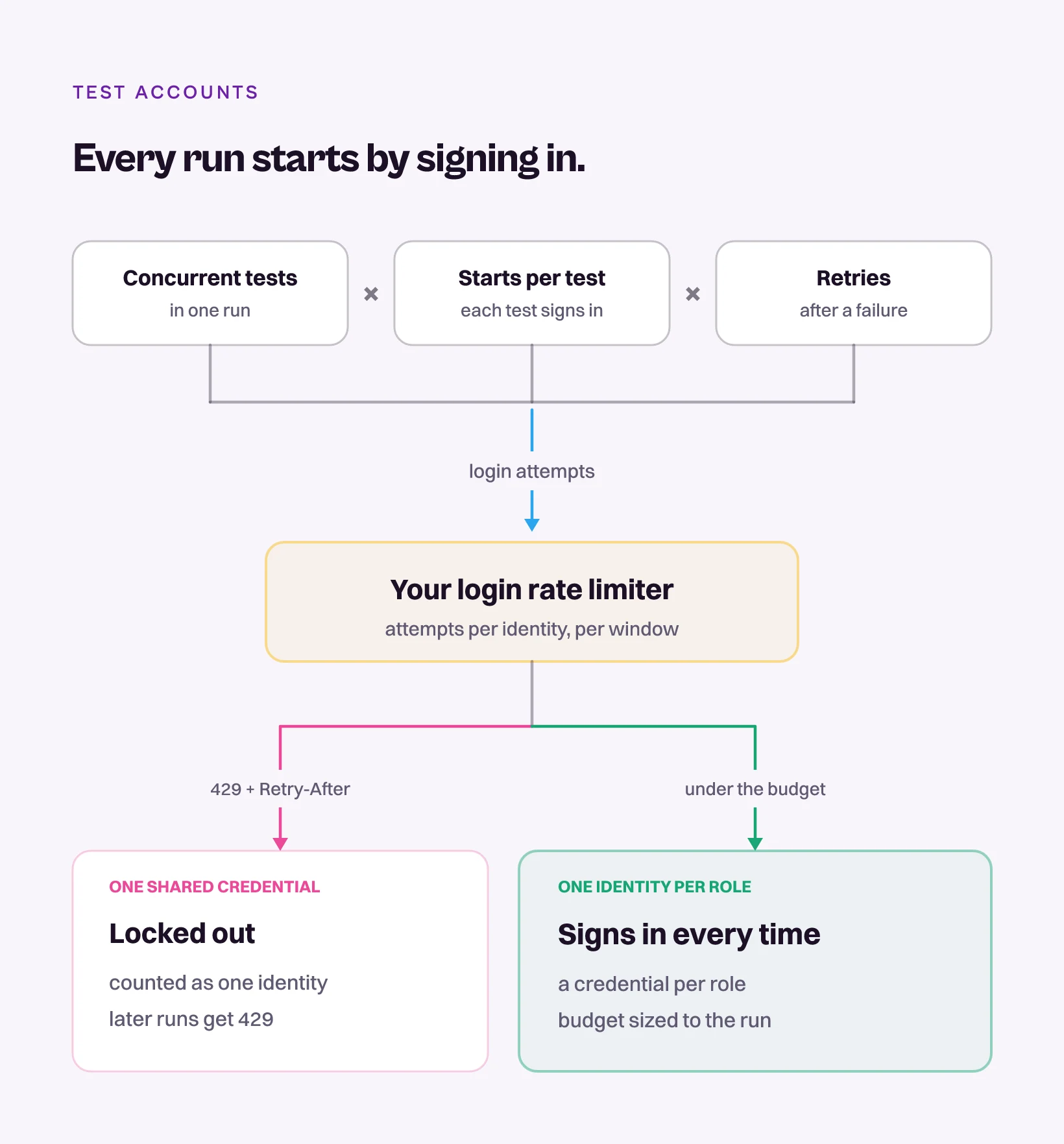
The budget is per identity, which is why Step 1 comes first. Three roles sharing one login burn it three times as fast.
Step 4: Raise the Limit for the Test Identity Only
Set the per-identity login limit above the Step 3 budget, with limited headroom for setup and recovery, for the dedicated test identities on the preview hostname and nowhere else. The exception lives under a named rule, such as pie-pr-testing, so it can be audited and rolled back in one step.
Before you change anything, find every layer that can say no. Login traffic passes through the CDN, the WAF, the load balancer, the API gateway, the identity provider, and application middleware, and any one of them can hold a limit of its own.
An edge exception for the tester’s addresses does nothing to per-user, per-token, database, or third-party quotas, so a run can clear the WAF cleanly and collect a 429 from your own API gateway anyway. Application limits are a separate change, and the docs guide to allowing Pie traffic safely walks through both.
While the limit is being tuned, make the failure legible. Return Retry-After with any 429 you do send, so the client backs off instead of hammering, and stop retrying after a deterministic limit failure.
RFC 6585 covers the first. It says the 429 status code “indicates that the user has sent too many requests in a given amount of time”, and that the response may carry a Retry-After header saying how long to wait. Answer with a bare block page and no interval, and the client learns nothing, so it keeps knocking.
Scope every exception to the preview hostname and the dedicated test identity. Production limits stay where they are.
Step 5: Check the Three Runs
Run the critical path three times with the same test identity before calling the setup done, and require four things to hold on every one of those runs.
- No manual input: Login completes without anybody typing a code, clicking a link, or approving a prompt.
- Right role, right flags: The expected role and feature flags are visible on the first screen. A sign-in that lands on the old UI is a wrong identity, not a passing test.
- Writes survive a reset: The run creates what it needs in the preview environment and the reset puts the account back.
- Lower privilege turned away: Point the member identity at the privileged route and confirm it does not open.
Three passes with those four holding is the bar. One pass proves the credentials work today. Three prove the reset works and the budget clears, which is the difference between a smoke check and an end-to-end test of the login.
If Login Still Fails, Find Which Layer Said No
Split the failure by symptom before opening a config file, because the limiter is only one of three places a sign-in fails. A challenge page or a block at the edge is a network problem, a 429 is a budget problem, and a signed-in agent looking at the wrong screen is an authorization problem.
- Signs in but cannot see the feature: Check organization membership, role propagation, flag targeting, and cached sessions. The login worked and the authorization did not catch up.
- First run passes, later runs fail: Something the first run consumed or mutated was never reset. The cause is data, not identity, and test isolation strategies fix it more reliably than a longer timeout.
- Runs collide: Give each pull request or run its own tenant, namespace, or record prefix so concurrent runs stop editing the same row.
- Verification link expires: Generate it during the run instead of seeding it in advance. The same trap runs through email verification and password reset flows, and those tests mint the link inside the run for the same reason.
- Edge allows it, API returns 429: The limit is at the application layer. Check the API gateway, per-user and per-tenant quotas, the database, and any third-party service in the path.
Edge block means network. A 429 means budget. Signed in on the wrong screen means authorization. Only the middle one is the limiter, and it is the only one arithmetic fixes.
What Pie Needs to Sign In to Your App
A dedicated test identity per role stored in Credential Manager, a second factor it can complete from a source you control, and a login budget on the preview that clears the run. Pie is an autonomous QA platform whose agents drive the app the way a person does, which means they arrive at the same login screen and the same limiter behind it. The credential half of that is built in. The budget half is yours.
- Credential Manager: Credentials are stored per app, encrypted, and used only during test execution. An admin path and a member path are two entries against one app. No second suite.
- Second factor: Verification works from a source you control. A static test code on the account, a test inbox attached as a credential so an emailed code is read during the run, or a test user with the second factor off. Pie does not intercept an SMS or generate an authenticator code, and it expects CAPTCHA off for the identity it signs in with. Neither is something a cleverer agent fixes.
- Trigger: An engineer types
@pie-pr-botin a pull request comment, or/pieon a GitLab merge request, and every test in that run signs in as the credential it names. That is the moment the budget gets spent. - Blocked-login checklist: When an application refuses a sign-in, Pie’s credential documentation sends you to bot detection and rate limiting first, then to whether the platform’s addresses are allowlisted.
None of that sizes your limiter for you. Pie arrives with the credentials handled and has to clear whatever limit you set.
Size the Gate Before You Judge the Agent
A limiter that stops an automated tester is a control doing exactly its job. You sized it for humans, and for attackers guessing passwords from outside. The tester is the first workload to push on it from inside the building, at machine speed, with a valid password.
So work the steps in order. One identity per role, a login none of them needs a human to finish, a budget counted from the run plan, a limit raised for those identities alone, and three clean runs to prove it. Never let the login shortcut hand an agent a permission the real user would not have.
The engineer who ran those 45 pull requests came out of it with one conclusion. Pie was not the bottleneck. The thing doing the stopping was a gate, and a gate is something you can size in an afternoon.
Give the Tester Its Own Login
Name the identity. Pie signs in as it on every pull request you tag.
Book a DemoFrequently Asked Questions
One dedicated account for every role the changed code touches. An admin screen, a manager approval, and a member view are three identities, not one login with everything on.
One all-powerful account cannot prove that a member is blocked from the admin route, which is usually the assertion that matters.
Your login rate limiter counts sign-in starts per identity per window, and successful ones count too. Parallel runs on one shared credential look like a single identity hammering the door.
Give each role its own test identity and raise that identity's login limit above what one run needs.
Not globally. The limiter is your defense against credential stuffing, and weakening it in production trades a testing inconvenience for a security hole.
Scope the exception instead. Raise the login budget for the test identity on the preview hostname only, under a named rule you can audit and roll back.
Account lockout counts failures. After a handful of wrong passwords the account locks, which is why OWASP calls it a brute-force control.
A login rate limit counts starts inside a window, successful ones included. A tester with the correct password never trips the lockout and trips the rate limit constantly.
Yes, when the login screen is not what the pull request changed. Mint the session through an audited test endpoint that only answers outside production.
The seeded session must carry the same role, group membership, and feature flags the real user would have, or the test stops proving anything.
Login worked and authorization did not catch up. Check the test identity's organization membership, role propagation, feature flag targeting, and any cached session from an earlier run.
If sign-in works and the feature stays hidden, the flag values for that identity are the next thing to resolve.
Only from a source you control. A static test code, a test inbox stored as a credential so an emailed code is read mid-run, or a test user with the second factor off.
SMS codes and authenticator apps are not intercepted, and CAPTCHA has to be off for that identity.
Eight years building search and delivery systems at Amazon. The kind of scale where flaky tests block billion-dollar releases. Now CTO at Pie, building AI agents that adapt when your UI changes. LinkedIn →