How to Test Biometric Authentication in Mobile Apps (Face ID, Touch ID, Fingerprint)
A passing fingerprint proves the path that already worked. The bugs ship in re-enrollment, backgrounding and the passcode fallback. Here is how to test each one.

Your app never sees the face or the fingerprint. The OS matches it against a template in secure hardware and hands your code a result, so every biometric test comes down to injecting the result rather than the biometric. Enroll on the simulator, send a match, assert the account screen. One command, one state.
Biometric login has closer to eight states, and the other seven are where it breaks. Here is how to build the three a passing scan never reaches.
What you’ll learn
- Why injecting a passing scan tests almost nothing
- The exact commands to inject results on iOS and Android
- The three states a pass-or-fail call does not set up, and how to build each one
- Why event-bound auth passes your test and fails your users
- The eight-row biometric scenario matrix worth covering
Why a Passing Scan Proves Almost Nothing
A test that injects a successful scan and asserts the user gets in covers a single edge of a state machine. The test is worth exactly as many of the other edges as it touches, and injecting success touches none.
Count what a passing-scan test confirms:
- The prompt appears.
- The OS returns success.
- Your code advances the user.
Every one of those is the code you wrote most carefully and demoed to the team. A green result that cannot fail for any reason you would want to know about is a false pass.
The real failure surface is in the error codes, the enrollment changes, the backgrounding, and the fallback, and none of it shows up when the setup hands the app a clean win. Treat biometric auth like any other end-to-end testing problem where the sad path carries the information.
How Biometric Auth Actually Works
On iOS, the LocalAuthentication framework’s LAContext asks the system to match the user against templates held in the Secure Enclave, and Apple’s framework page states that your app never gains access to the underlying authentication data. On Android, BiometricPrompt does the same against templates kept in secure hardware, the TEE or a Secure Element.
Your code gets back a result and nothing more. A success, a rejected attempt, or an error code that says why it stopped. The sensor boundary is why you cannot feed a real face into an emulator, and why every hook in the next section hands the app a result instead of a face. Testing 2FA and OTP flows runs on that idea too, without reading a code off a screen.
What decides your test strategy is what the app does with a success, and the two common designs are not equivalent.
- Event-bound: The success is treated as a standalone event that flips a flag. The user authenticated, so unlock the screen. Simple, and quietly weak.
- Crypto-bound: The success releases a hardware-backed key from the Keystore or the Keychain, and the sensitive operation cannot proceed without it.
BiometricPrompt has been the system-provided prompt since Android 9 (API 28, 2018), and Face ID shipped with iPhone X in 2017. What varies is how each app wires the result, and that wiring is what a good test has to pin down.
How to Inject Biometric Results
You test biometric flows by injecting a synthetic match or failure at the OS layer, because the sensor cannot read a real user in an automated environment. Each environment exposes its own hook, and the right one depends on whether you run a simulator in CI or a real device on a cloud grid. Test setup enrolls a template first, then sends the result the scenario needs.
An app that signs in with a passkey asked us for a demo run. The hook we had on the Simulator was a flag that hands the app a dummy pass. It gets a run past the gate and proves nothing about the passkey itself.
On the iOS Simulator, enrollment and the match both live under the Features menu, and Appium’s XCUITest driver exposes the two switches for CI. The driver marks both calls Simulator-only and throws on a physical device.
// Enroll: Simulator menu > Features > Face ID (or Touch ID) > Enrolled
// Then, while the prompt is showing:
//   Features > Face ID > Matching Face      -> success
//   Features > Face ID > Non-matching Face  -> failure

// Programmatically via Appium's XCUITest driver (Java client):
driver.executeScript("mobile: enrollBiometric", Map.of("isEnabled", true));
driver.executeScript("mobile: sendBiometricMatch", Map.of("type", "faceId", "match", true));
On the Android emulator, enroll a fingerprint in the emulated device’s Settings first, with the sensor supplied by Extended Controls > Fingerprint. The emulator console then fires a touch from the command line, and that one line drops straight into a CI script.
# Touch the sensor with enrolled fingerprint id 1
adb emu finger touch 1
On real devices, a cloud grid overrides the biometric API on the phone itself. BrowserStack, for example, takes pass, fail, or cancel through a biometricMatch argument in its browserstack_executor call on both Android and iOS. Its docs say five fail calls trip Android’s lockout, without the 30-second wait a physical phone imposes. Its FAQ also says it does not yet support iOS apps that use Keychain APIs with biometric access control, which is the crypto-bound design this guide recommends. The table below is the map of what each hook reaches.
| Method | Environment | How it injects | Where it stops |
|---|---|---|---|
| Simulator Features menu | iOS Simulator | Matching or non-matching face or touch | No real sensor, and Enrolled is an on/off switch |
| mobile: sendBiometricMatch | iOS Simulator (Appium) | Programmatic pass or fail in CI | Simulator only, never a real Secure Enclave |
| adb emu finger touch | Android emulator | Injects an enrolled fingerprint touch | Emulator only, no face, no OEM sensor quirks |
| Cloud-grid pass/fail/cancel | Real devices (cloud grid) | Overrides the biometric API on the device | A synthetic result, and BrowserStack does not support iOS Keychain items with biometric access control |
Notice what the last column has in common. Every method injects the result, and none of them injects the situation. The rest of this guide is about the situations you build by hand.
Three States a Passing Scan Never Reaches
The biometric bugs that reach production cluster in three states a scan result does not set up, because each is a change in the device or in the app’s own state. Set them up deliberately, because your users hit all three.
1. New-Enrollment Key Invalidation
Add a fingerprint or re-register Face ID, and a key created with Android’s setInvalidatedByBiometricEnrollment(true), or a Keychain item protected with Apple’s biometryCurrentSet flag, stops working for good. Android surfaces it as KeyPermanentlyInvalidatedException, and the setting is on by default, as the biometric sign-in guide sample shows. iOS works the other way round. A Keychain item without biometryCurrentSet survives a new enrollment, which OWASP files as MASWE-0022. Your app has to catch it and force a full re-authentication.
Injecting a matching scan skips the invalidation entirely, so a broken recovery path ships green. Build the state instead. Enroll a second fingerprint in the Android emulator under Settings > Security > Fingerprint, reopen the app, and try the biometric login. For iOS, the Simulator exposes only an Enrolled on/off switch, so check on your Xcode version whether toggling it invalidates a biometryCurrentSet item, or re-enroll Face ID on a physical device.
2. Backgrounding Mid-Prompt
The biometric dialog is a system surface. Send the app to the background while the prompt is showing, then come back. A call or a screen lock does the same. A correct app resolves the interrupted attempt and re-prompts. A careless one leaves a half-authenticated session or a stuck screen.
Each platform handles it differently. An iOS evaluation fails with LAError.systemCancel, the code Apple ties to another app taking the foreground. Android’s BiometricPrompt dismisses itself once your app leaves the foreground, and the re-prompt on return is your code’s job. Script the interruption with Appium’s mobile: backgroundApp, which takes a seconds argument on both the XCUITest and UiAutomator2 drivers.
3. The Passcode Fallback
iOS gives you two paths. A deviceOwnerAuthentication policy reverts to the device passcode on its own, while LAError.userFallback means the user tapped the fallback button under the biometrics-only policy, so control returns to your app.
Android makes the fallback opt-in. ERROR_LOCKOUT lands after five failed attempts and holds for 30 seconds. ERROR_LOCKOUT_PERMANENT follows once lockout has recurred too many times, and biometrics stay off until the user unlocks with the device credential. The prompt offers that credential only if you allowed DEVICE_CREDENTIAL in setAllowedAuthenticators, and BIOMETRIC_STRONG | DEVICE_CREDENTIAL is not supported on Android 10 and lower. Allow BIOMETRIC_STRONG alone and the prompt’s negative button is the only way out. The fallback is yours to build.
When the user does take the credential path, the Android result reports AUTHENTICATION_RESULT_TYPE_DEVICE_CREDENTIAL. Assert on it wherever the app should demand a biometric (it needs androidx.biometric 1.1.0 or later, and older Android versions can report AUTHENTICATION_RESULT_TYPE_UNKNOWN). On both platforms the passcode sheet belongs to the system, like the native permission dialog, so a selector-based test has to reach outside your app to touch it.
New-enrollment invalidation is the easiest of the three to miss because it never shows up in a single-session test. Days later the user adds a finger, the old key is gone, and only one of the two designs notices.
Get Past the Prompt
Give Pie the screens behind Face ID. Keep your scripts for the edge states.
Why Event-Bound Auth Passes a Test and Fails Users
Whether a passing scan means anything depends on which of two designs your app uses, and a functional test that ignores the distinction can certify a bypassable app as working. The OWASP Mobile Application Security Testing Guide draws the line in its Android biometric test, with an iOS counterpart.
Event-bound authentication relies on the success callback. The OS calls onAuthenticationSucceeded, the app sets an authenticated flag, and the protected feature unlocks. OWASP’s Android test says this is susceptible to logic manipulation by overwriting the callback, which is exactly what an instrumentation hook does. Nothing cryptographic depends on the user being present.
Crypto-bound authentication requires the biometric to release a hardware-backed key. On Android that is a CryptoObject wrapping a Keystore key. On iOS it is a Keychain item guarded by an access-control flag. The sensitive operation, decrypting a token or signing a request, cannot run without the key, so a hooked callback gets you nothing.
| Event-bound | Crypto-bound | |
|---|---|---|
| What success does | Sets a flag in app state | Releases a Keystore or Keychain key |
| What protects the feature | The flag | An operation that fails without the key |
| What the test asserts | The screen unlocked | The protected call fails without the key, and a new enrollment invalidates it |
For testing, that changes the assertion. Do not stop at the screen unlocking. Verify that the protected operation, the API call or the decrypt, fails when the key is unavailable, and that a fresh enrollment invalidates it.
If the unlocked screen is the only thing your test checks, an event-bound app and a crypto-bound app produce identical green runs, and only one of them is safe. Give that green run the distrust you already keep for non-deterministic tests. A pass has to mean the thing you think it means.
Eight Biometric Scenarios to Cover
A complete biometric matrix covers the request, every result state, the recovery paths, and the device-level changes that happen outside your app. Cover the first two and stop, and the recovery paths are where your incidents come from. Our guide to testing mobile apps compresses the fallback chain into one bullet. Here it is in full, eight rows at minimum:
- Happy path: Prompt appears, scan matches, protected feature unlocks. The baseline, not the finish line.
- Direct failure: A non-matching scan is rejected, the prompt offers another try, and each miss counts toward lockout.
- Lockout: Five failed scans trip
ERROR_LOCKOUTon Android orLAError.biometryLockouton iOS, and the app routes to its fallback instead of a dead prompt. - Passcode fallback: The device credential path works where you allowed it, and the app does not silently treat it as a full biometric pass.
- New enrollment: A newly enrolled biometric invalidates the key, and the app forces re-authentication instead of trusting a stale session.
- Backgrounding mid-prompt: Interrupt the prompt, return, and confirm the app resolves cleanly with no half-authenticated state.
- No biometric available:
biometryNotEnrolledon iOS, orERROR_NO_BIOMETRICSandERROR_HW_UNAVAILABLEon Android, degrade to the alternative sign-in, never a crash. - Crypto-bound assertion: The protected operation fails without the key, proving the auth is bound to something real.
In one of our run reviews on a buyer’s app, tapping Sign in on a test account with no Face ID set up showed a message asking for biometrics. Someone on the buyer’s team said it meant you have to log in because the app had no face on file, and that it was badly written. No biometrics enrolled is a state, not an error, and the app should say what to do next.
The happy path is one row of eight. A mobile test automation suite that stops there has coverage in name only.
What Pie Runs Once Face ID Passes
In an app that opens on Face ID, everything a user does sits behind that gate, so a suite that cannot get past it tests nothing else. Pie triggers the Face ID match itself on the iOS Simulator. The success is simulated, the same kind of simulated success the hooks above produce, and the run carries on into the app. On Android, handle the gate in your test setup, for example with a test build that skips the prompt.
From there the agent works from a screenshot and decides what to tap, almost like a tester who has never seen the app before and is working it out as they go.
- Plain-English steps: You describe the flow behind the gate the way you would brief a tester, “open the latest statement and download it,” and Pie drafts the test steps from that.
- No selectors to maintain: You author those steps without tracking resource ids, because vision-based execution finds each element on the screen it sees.
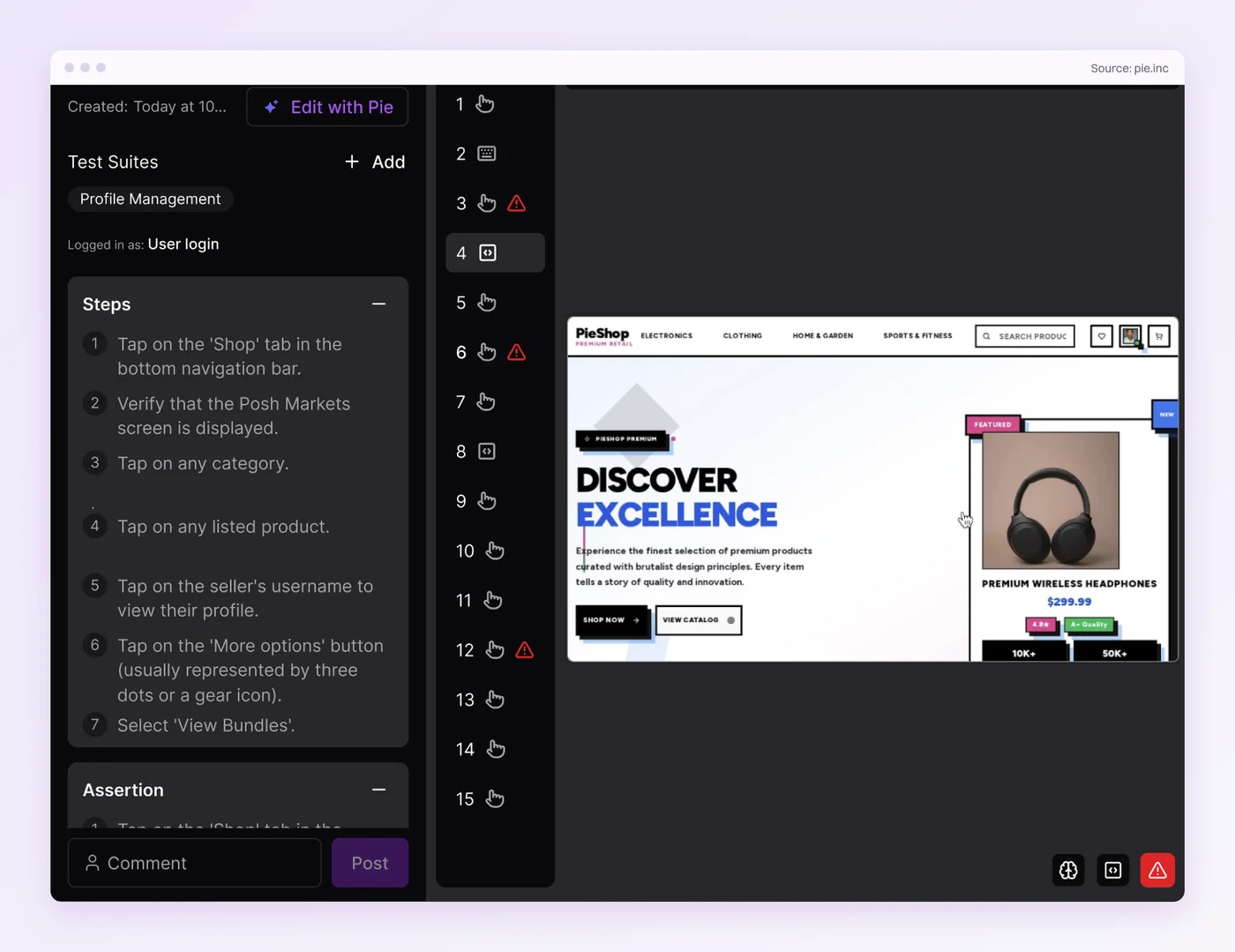
Split the work at the gate. The failed scan, the lockout, the new enrollment and the passcode fallback stay in your own suite, built with the hooks and setups in this guide, and so does the crypto-bound assertion. Pie takes the app on the other side of a passing match.
One Command Proves One State
Biometric testing goes wrong when it stops at the scan, because the bugs ship from the states a scan result never sets up and from a security design a green screen hides.
Set up the enrollment change, the backgrounding, and the passcode fallback yourself, and assert that the protected operation fails without the key. That is the test. The unlocked screen is a side effect.
Then hand Pie the screens that come after the prompt. It clears Face ID with the iOS Simulator’s own match and runs the flow a user takes next. Your suite proves the gate holds, and Pie tests the app behind it.
Test What Sits Behind Face ID
Write the logged-in flow in plain English. Ship it tested.
Frequently Asked Questions
Eight years building search and delivery systems at Amazon. The kind of scale where flaky tests block billion-dollar releases. Now CTO at Pie, building AI agents that adapt when your UI changes. LinkedIn →